Mirror a YouTube video for dance practice
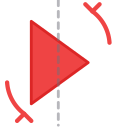
Learning choreography from a YouTube tutorial has one built-in problem: the instructor faces you, so when they step to their left, you have to step to your right. Flip YouTube mirrors the video itself, so the instructor moves the way you do and you can simply follow along.
Published
As filmed, the instructor's left hand (red wristband) is on your right.
From tutorial to mirror in four steps.
-
Install Flip YouTube
Add Flip YouTube from the Chrome Web Store. It is free and needs no account.
-
Open the tutorial
Open the tutorial on YouTube and click the extension icon.
-
Press Horiz
Press Horiz in the Flip card. The picture is mirrored left to right, and the setting is saved.
-
Switch back any time
Press the same button again to go back to the original orientation at any time.
If you would rather not touch the mouse, turn on the buttons the extension can add to YouTube's own control bar, or use the keyboard shortcuts. You can see and change the key combinations in Chrome's shortcut settings at chrome://extensions/shortcuts.
Why mirroring helps when you practise
In a studio you would copy the mirror. On a laptop screen you have to translate every move in your head. A studio mirror shows you the teacher's left side on your left. A normal video does the opposite.
When you are learning a new sequence, that mental flip costs attention you would rather spend on timing and footwork. Mirroring the video removes it, which is especially useful for turns, side steps and any move where left and right are not interchangeable.
You also tend to watch the same short passage again and again, often from a few steps back with your hands free for nothing but dancing. That is where the settings that stay put matter: you set the mirror once and it is still there for the next clip.
Tips for dancers
-
Pair it with YouTube's speed menu
Slow a hard section down, mirror it, and the whole passage becomes easier to copy.
-
Watch out for on-screen text
A mirrored video also mirrors any lettering in the picture. Toggle the mirror off with a shortcut when you need to read something.
-
Fit the player to your screen
The Scale control lets you enlarge the picture so you can see it from further away.
-
Practising with a mirrored recording of yourself?
If a webcam video came out reversed, the same Horiz button puts it back the right way round.
What it does not do
-
Only your view changes
Flip YouTube changes how the video is shown to you in your own browser. It does not edit or download the video, and it does not change what anyone else sees.
-
No DRM-protected video
Videos protected by DRM cannot be transformed by any extension, and the popup tells you so rather than leaving you guessing.
-
Settings stay on your device
They are stored in Chrome's local storage and are not sent to a server.
Mirroring YouTube videos: questions
How do I mirror a YouTube video?
Open the video, click the Flip YouTube icon and press Horiz in the Flip card. The picture is mirrored left to right and the setting is saved. Press the same button again to go back.
Is mirroring the same as flipping horizontally?
Yes. In Flip YouTube the Horiz button mirrors the picture left to right, which is the effect a studio mirror gives you.
Does mirroring change the sound or the speed?
No. Only the picture changes. Audio and YouTube's own speed and captions controls work as usual.
Why does text in the video look backwards?
A mirrored video also mirrors any lettering in the picture. Switch the mirror off with a shortcut when you need to read something, then turn it back on.
Can I mirror a video without the mouse?
Yes. Turn on the buttons the extension can add to YouTube's own control bar, or use the keyboard shortcuts. You can see and change the key combinations at chrome://extensions/shortcuts.
Will the mirror stay on for the next video?
Yes. Your setting is saved on your device and is still there for the next clip, until you turn it off.
Get the right angle.
Free, no account, and your settings stay on your device.